
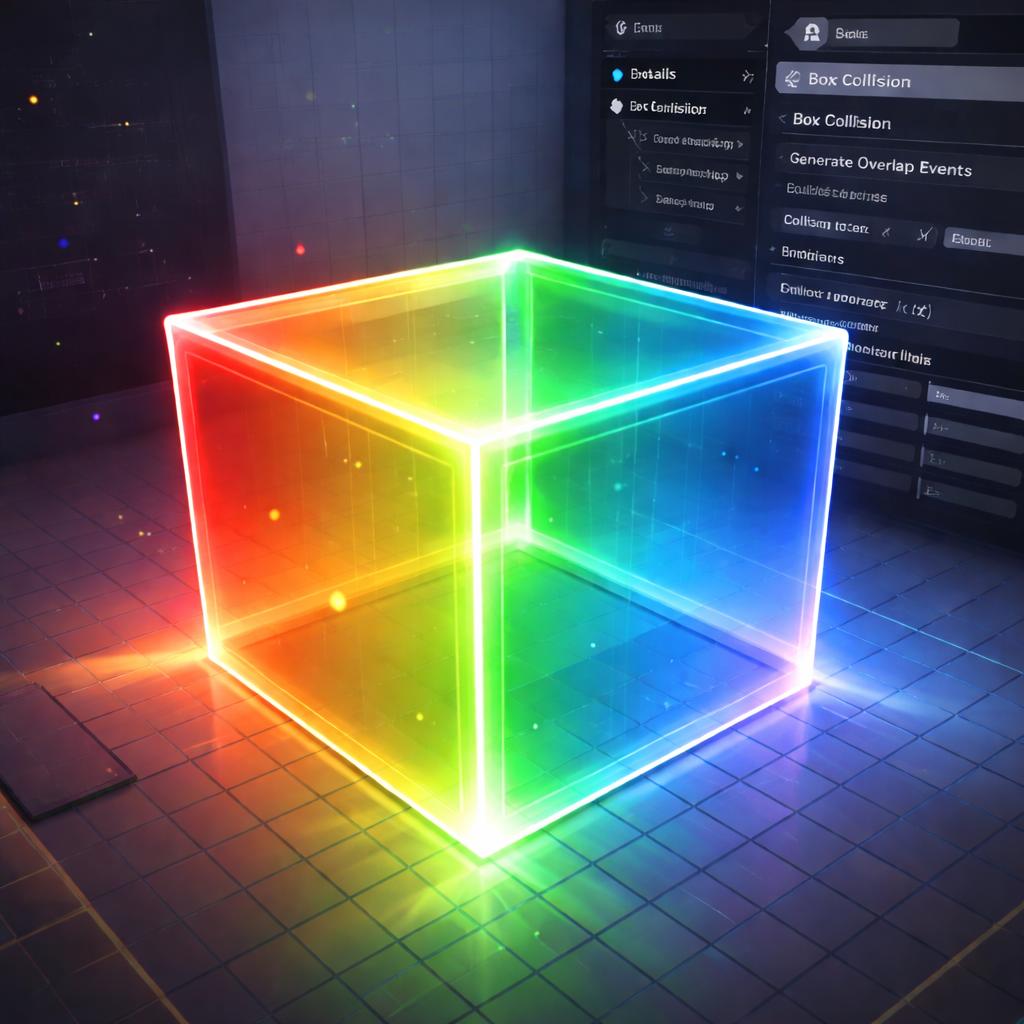
What you’re building & why
This guide covers the creation of a simple, reusable, multifunctional overlap box that can be dropped into any level to drive gameplay logic through overlaps.
The goal is to provide a clean, designer-friendly Blueprint that:
- Is easy to visualize directly in the editor
- Is safe by default (no accidental overlaps)
- Separates gameplay logic from visual helpers
- Scales cleanly from prototypes to full productions
The result is a single reusable actor that acts as a signal emitter, not a logic sink.

Architecture Overview
BP_Overlap_Box consists of three core parts:
- Box Collision Component
- The authoritative component
- Responsible for overlap events and gameplay signaling
- Cube Component (Visual Only)
- Matches the collision bounds
- Exists purely for editor visualization
- Never participates in collision or overlaps
- Translucent Visualization Material
- Makes the volume readable at a glance
- Color-coded via material instances
The collision drives gameplay logic. The cube exists only to communicate intent to designers.
Step-by-Step Implementation
The rest of the post proceeds in a strict, practical order:
- Create the Blueprint Actor
- Add Components
- Add Overlap Events
- Create the Visualization Material
- Apply and Instance the Material
The remainder of this post walks through the full implementation end to end.
1. Create the Blueprint Actor
- Create a new Blueprint Actor named BP_Overlap_Box.
- Use a plain Actor base class.
- Do not add Character, Pawn, or movement logic.
Keep this actor lightweight and purpose-built.
2. Add Components
- In BP_Overlap_Box, add a Box Collision component.
- Add a Cube component.
- Resize the Cube so it matches the Box Collision bounds exactly.
- Select the Cube component and set:
- Generate Overlap Events: Disabled
- Collision Preset: NoCollision
- Hidden In Game: true


The Box Collision is authoritative. The Cube exists only to make the volume visible in the editor.
3. Add Overlap Events
- Select the Box Collision component.
- In the Event Graph, add:
- On Component Begin Overlap (Box Collision)
- On Component End Overlap (Box Collision)
Treat these as signals, not gameplay containers:
- Do not hard-code game behavior here.
- Forward through Event Dispatchers, override in child Blueprints, or bind from external systems.

This keeps BP_Overlap_Box generic and reusable.
4. Create the Visualization Material
- Create a new Material named M_Overlap_Box.
- Set Blend Mode to Translucent.
- Add parameters:
- Vector3 Parameter: Base Color
- Scalar Parameter: Opacity
- Connect:
- Base Color → Base Color input
- Opacity → Opacity input

This material exists solely for editor visualization and debugging clarity.
5. Apply and Instance the Material
- Assign M_Overlap_Box (or a material instance) to the Cube component.
- Create multiple Material Instances from M_Overlap_Box.
- Use color to communicate intent:
- Red – Damage zones
- Blue – Triggers
- Green – Safe areas

This lets designers understand purpose instantly without opening Blueprint logic.
Tuning & Configuration
Per instance:
- Adjust the Box Collision size to fit the gameplay space
- Keep Generate Overlap Events disabled until explicitly needed
- Assign a clear visualization material instance
This makes the actor safe by default and prevents accidental logic firing.
Common Issues & Fixes
Overlap logic firing unexpectedly
- Verify the Cube component has:
- Generate Overlap Events disabled
- Collision Preset set to NoCollision
- Ensure only the Box Collision component handles overlaps
If something overlaps unexpectedly, the issue is almost always visual vs collision responsibility.
Reuse Across Projects
This pattern is intentionally reusable:
- Drop BP_Overlap_Box into any project
- Extend behavior via child Blueprints or dispatchers
- Reuse the same visualization material across teams and levels
Because visuals and logic are decoupled, this overlap box works equally well for:
- Prototypes
- Vertical slices
- Full productions
It is a small, stable building block that scales with project complexity.