
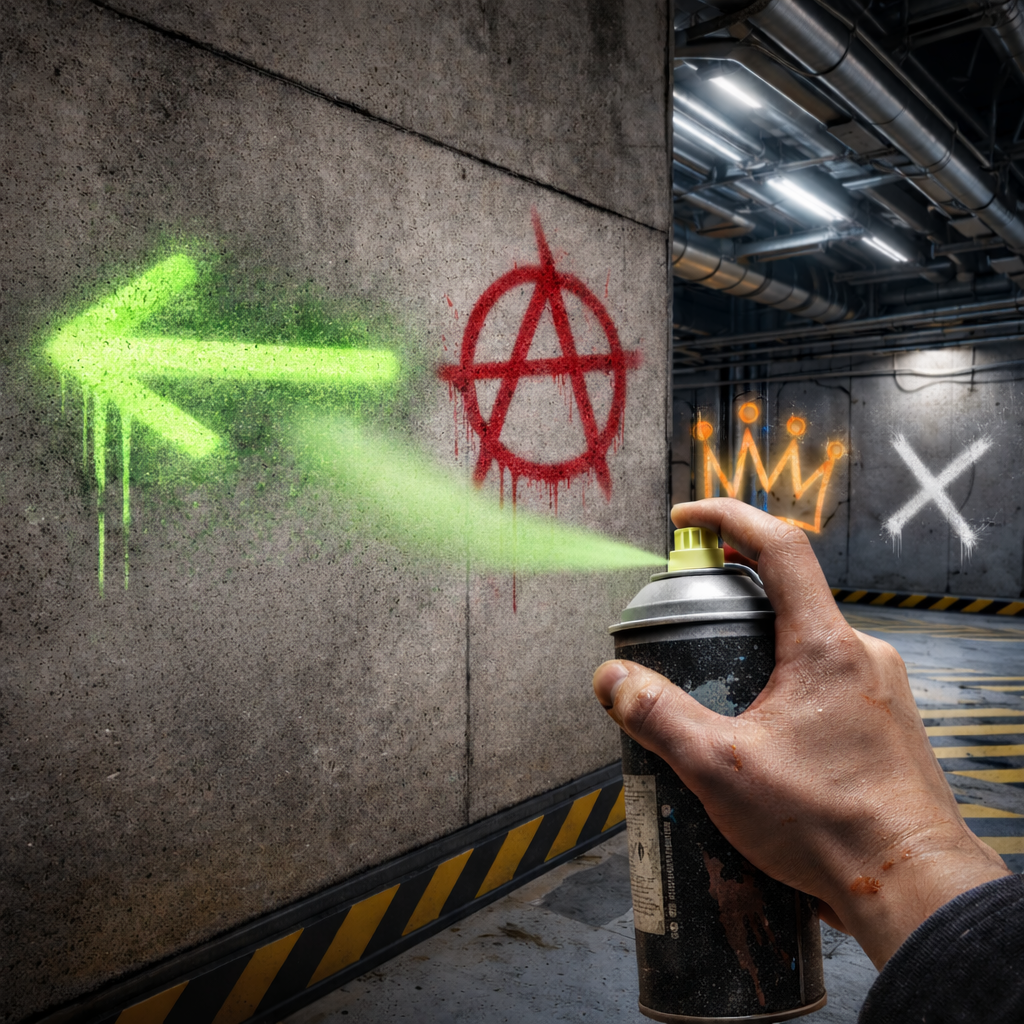
What you’re building & why
This guide documents a reusable runtime decal placement and removal system.
The goal is to allow players to place decals on surfaces using line traces, and remove them by looking at them and triggering an input.
This system is built to be reusable across projects, easy to extend, and safe to integrate into existing gameplay frameworks.
Decals in Unreal are projected materials rendered on top of geometry rather than standalone meshes, which makes them ideal for runtime marking systems. fileciteturn0file0

Architecture Overview
The system is built from four reusable building blocks:
Input Component Handles player input and performs traces.
Decal Actor Represents a single placed decal instance with collision for interaction.
Trace Channel Separates placement and removal logic safely.
HUD Widget Provides lightweight debugging and iteration feedback.
Decal Actors internally contain a decal component used to render material projection onto surfaces.
Deferred decals project materials onto existing meshes using planar projection, not geometry.
Step-by-Step Implementation
The rest of the post proceeds in a strict, practical order:
- Create Trace Channel
- Create Base Decal Material
- Import Test Texture
- Configure Texture Settings
- Create Material Instance
- Create Decal Actor Blueprint
- Configure Decal Actor Collision And Tags
- Create Decal Input Component
- Implement Line Trace Logic
- Implement Decal Removal Logic
- Implement Decal Spawn Logic
- Attach Component To Character
- Add Test HUD
The remainder of this post walks through the full implementation end to end.
1. Create Trace Channel
- Open Project Settings.
- Navigate to Collision.
- Scroll to Trace Channels.
- Click New Trace Channel.
- Name it PlayerDecal.

2. Create Base Decal Material
- Enable Engine Content in Content Browser.
- Search for M_MS_Decal.
- Right click M_MS_Decal.
- Click Duplicate.
- Rename to M_Decal_Base.
3. Import Test Texture
- Import an image into Content Browser.
- Rename texture to T_Decal_Test.
4. Configure Texture Settings
- Right click T_Decal_Test.
- Click Sprite Actions.
- Click Apply Paper2D Texture Settings.

5. Create Material Instance
- Right click M_Decal_Base.
- Click Create Material Instance.
- Rename to MI_Decal_Test.
- Open MI_Decal_Test.
- Set BaseColor Texture to T_Decal_Test.

6. Create Decal Actor Blueprint
- Create Blueprint Class.
- Select Decal Actor as parent.
- Name BP_DA_Test.

7. Configure Decal Actor Collision And Tags
- Open BP_DA_Test.
- Select Decal Component.
- Set Decal Material to MI_Decal_Test.
- Set Decal Size to 5, 10, 10.
- Select Actor root.
- Add Actor Tag named : PlayerDecal.
- Add Sphere Collision component.
- Set Radius to 10.
- Set Collision Preset to Custom.
- Set all responses to Ignore.
- Set Trace Response PlayerDecal to Block.


8. Create Decal Input Component
- Create Blueprint Actor Component.
- Name BP_Decal_Component.
- Open BP_Decal_Component.
9. Implement Line Trace Logic
- Open BP_Decal_Component.
- Add Left Mouse Button event.
- Add Right Mouse Button event.
- Add two Line Trace By Channel nodes.
- Add Get Player Camera Manager node.
- Drag from Camera Manager and add Get Actor Location.
- Drag from Camera Manager and add Get Actor Forward Vector.
- Drag from Forward Vector output and add Multiply node.
- Multiply Forward Vector by 1500 (convert pin to Float if needed).
- Drag from Multiply output and add Add node.
- Connect Get Actor Location to Add second input.
- Duplicate the full Trace Start and Trace End calculation nodes so each Line Trace has its own set.
- For the Right Mouse Line Trace, connect Get Actor Location to Start input. and connect the Add node result to End input.
- For the Left Mouse Line Trace, connect Get Actor Location to Start input. and connect the Add node result to End input.
- Connect Right Mouse event to first Line Trace.
- Connect Left Mouse event to second Line Trace.
- Set Right Mouse trace channel to PlayerDecal.
- Set Left Mouse trace channel to Visibility.
10. Implement Decal Removal Logic
- From Right Mouse Line Trace execution output add Branch.
- Drag from Line Trace out hit and add Break Hit Result.
- Drag from Hit Actor and add Actor Has Tag node.
- Set tag to PlayerDecal.
- Connect Actor Has Tag output to Branch condition.
- From Branch True execution output drag from Hit Actor.
- Add Destroy Actor node.

11. Implement Decal Spawn Logic
- From Left Mouse Line Trace execution output add Spawn Actor From Class.
- On the spawn actor from class node, right click on Spawn transfrorm and Split Struct Pin
- Drag from Line Trace out hit and add Break Hit Result.
- Connect Break Hit Location to Spawn Transform Location.
- Drag from Impact Normal and add Make Rot From Z.
- Connect Make Rot From Z to Spawn Transform Rotation.
- Set Spawn Actor Class to BP_DA_Test.

12. Attach Component To Character
- Open Player Character Blueprint.
- Click Add Component.
- Add BP_Decal_Component.
- Compile and Save.

13. Add Test HUD
- Create Widget Blueprint WBP_Decals.
- Add Canvas Panel as root.
- Add Image to Canvas Panel.
- Set Image Size to 5 , 5.
- Set Image Anchor to Middle Center.
- Set Image Position to 0 , 0.
- Set Image Alignment to 0.5 , 0.5.
- Set Image Brush Color to White.
- Add Vertical Box to Canvas Panel.
- Set Vertical Box Anchor to Center Bottom.
- Set Vertical Box Position to 0 , -150.
- Enable Size To Content on Vertical Box.
- Set Vertical Box Alignment to 0.5 , 0.5.
- Add Text Block inside Vertical Box.
- Set Text Block Padding to 5.
- Set Text Block Horizontal Alignment to Center.
- Set Text Block Vertical Alignment to Center.
- Set Text to Left Mouse : Add Decal.
- Add second Text Block inside Vertical Box.
- Set Padding to 5.
- Set Horizontal Alignment to Center.
- Set Vertical Alignment to Center.
- Set Text to Right Mouse : Remove Decal.
- Open BP_Decal_Component.
- In Event Graph add Event Begin Play.
- Drag from Begin Play execution pin and add Create Widget.
- Set Widget Class to WBP_Decals.
- Drag from Create Widget Return Value and add Add To Viewport.


Tuning & Configuration
Adjust trace distance to control placement range.
Adjust decal size per gameplay requirement.
Adjust collision radius to balance usability and precision.
Common Issues & Fixes
Decal not appearing, Ensure surface has “Receives Decals” enabled.
Trace not hitting when placing decals Ensure the target mesh: • Has Collision Enabled • Has a Collision Shape • Blocks the Visibility channel (placement uses Visibility trace)
Trace not hitting when removing decals Ensure the Decal Actor collision sphere: • Exists • Is set to Query Only • Blocks the PlayerDecal trace channel (removal uses PlayerDecal trace)
Removal not working Ensure the decal actor has the PlayerDecal
Reuse Across Projects
This system is designed as a reusable component.
The component can be dropped into any character blueprint.
Decal actor can be replaced with project-specific decal variants.
Trace channel keeps interaction isolated from other gameplay traces.